
GeoWise: Embed Options Overview: Popup, Inline, Deep Link

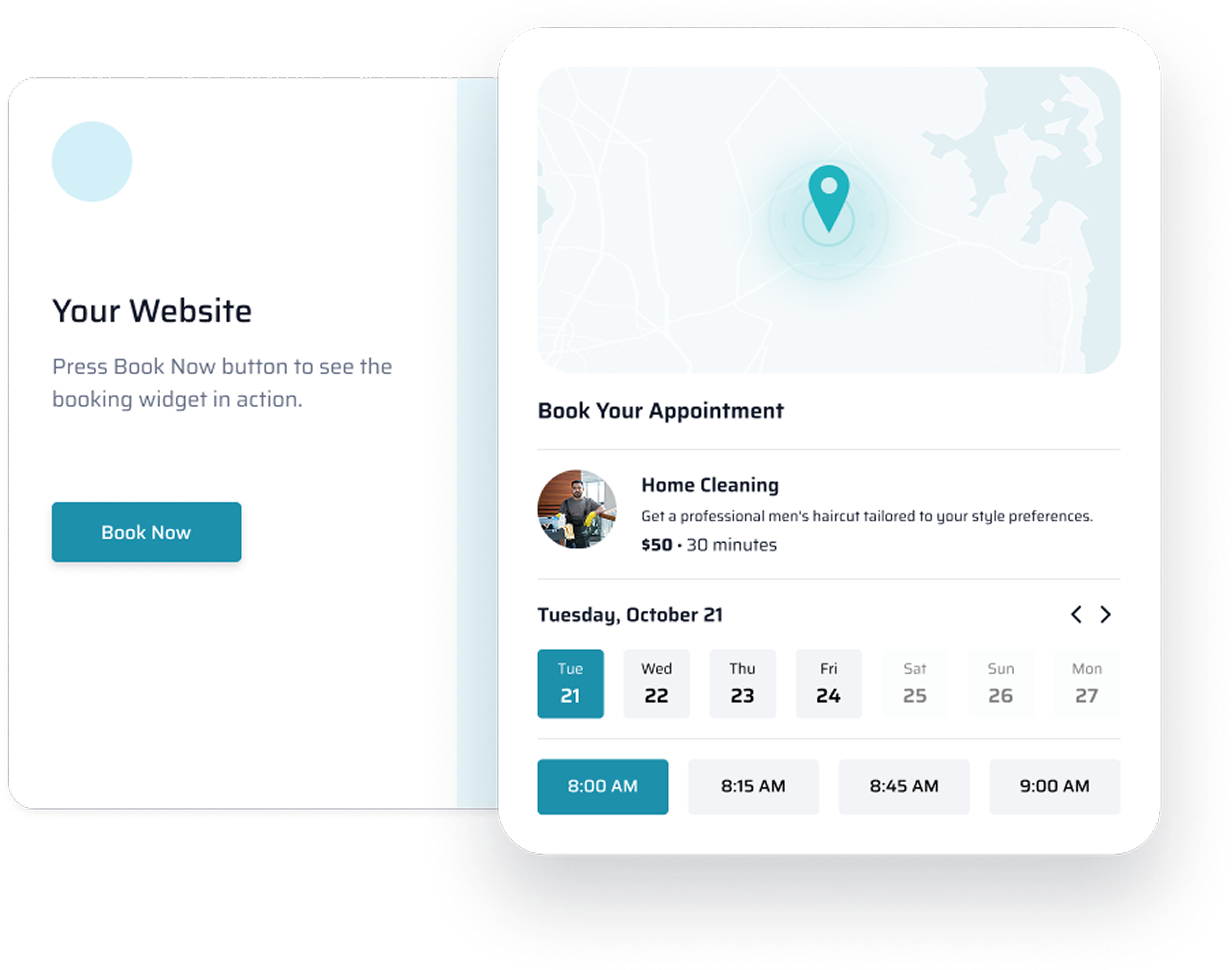
Embed Options Overview: Popup, Inline, Deep Link is a high-impact workflow for teams running location-based operations. This guide focuses on how to configure it in GeoWise so bookings stay operationally valid from the moment a customer confirms.
What this solves
- Reduces dispatcher rework caused by incomplete or low-quality booking inputs.
- Improves routing efficiency by aligning availability with real service constraints.
- Improves customer response speed through clearer booking and confirmation flows.
How to set it up in GeoWise
- Define service-level rules, duration assumptions, and eligibility constraints.
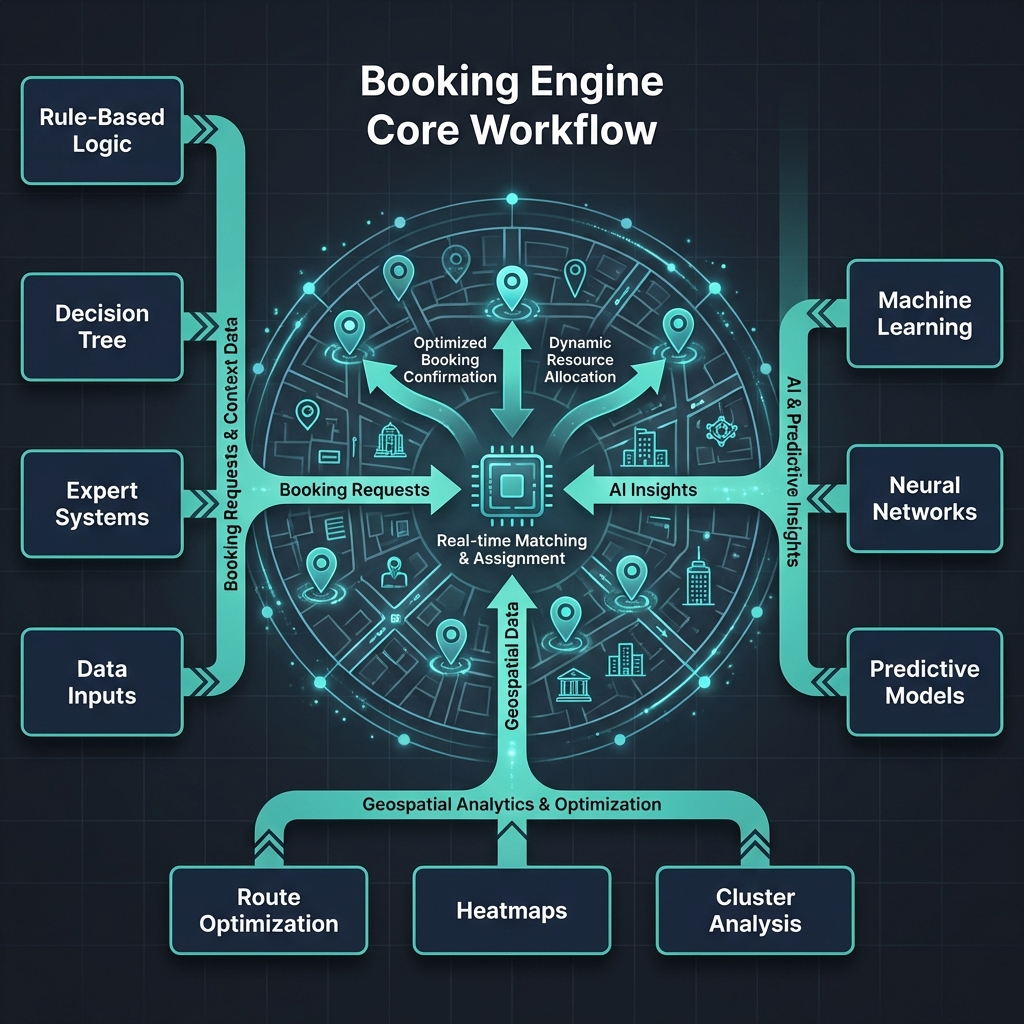
- Apply territory and availability logic so time slots reflect actual operating capacity.
- Configure assignment and notification behavior to keep field teams synchronized.
- Validate end-to-end booking from customer form to provider workflow.
Best practices from field teams
Start with conservative settings, then tighten logic after reviewing weekly performance. Teams that tune incrementally usually improve conversion without introducing avoidable scheduling conflicts.
Keep booking logic close to operations logic. If customers can book something dispatchers cannot execute efficiently, conversion quality drops even when lead volume grows.
KPIs to monitor
- Booking-to-completion rate
- Average travel time per completed job
- Reschedule rate by service and territory
- On-time arrival rate
Implementation checklist
- Confirm rules are consistent across all booking channels (web, WhatsApp, telebooking).
- Audit provider assignment constraints monthly.
- Review notification templates for customer clarity and reduced support load.
- Use reporting to adjust thresholds and maintain route quality as demand scales.
With the right configuration, GeoWise turns booking into a reliable operational input rather than a manual correction step.
Related Articles

Embedding the GeoWise Booking Widget on Your Website
Practical GeoWise guide for embedding the geowise booking widget on your website with setup steps, real-world examples, and optimization tactics for field-service teams.

GeoWise: Linking Directly to Individual Services
Practical GeoWise guide for linking directly to individual services with setup steps, real-world examples, and optimization tactics for field-service teams.

GeoWise: Using a Custom URL or Domain for Booking
Practical GeoWise guide for using a custom url or domain for booking with setup steps, real-world examples, and optimization tactics for field-service teams.